
If you are looking for a way to handle Computer opens slowly, there is a high possibility that the computer has directly affected the work: opening the software for a long time, unresponsive operations, freezing while working or using it for a while becomes hot and jerky. The hardest thing is not knowing whether the error is in the software, hard drive, RAM, temperature or degraded hardware.
This article follows the direction of practical testing, easy to do in advance, limited disassembly when not needed. The goal is to help you know which steps to handle yourself, when to upgrade RAM/SSD, when to take the device for a technical check and when it would be more reasonable to buy a new device.
Computer opens slowly: what signs need to be checked immediately?
Common signs are that the device responds slowly, operations are no longer smooth and users have to wait longer than usual. If the condition only occurs once after opening too much software, you can restart and monitor further. But if the error repeats for many days, appears when opening Excel, Chrome, games or when starting Windows, you should check the cause soon.
Users often need to know three things: can the machine fix itself with software, does it need to upgrade components, or is it time to replace the machine. The answer depends on the device's age, current configuration, hard drive condition, RAM, temperature and software in use.
Common causes of slow computer opening
Common causes include old hard drive HDD, almost full, RAM missing, many software running in the background or Windows has not been optimized for a long time. With office machines, the most common culprits are old hard drives HDD, RAM 4GB-8GB that are no longer enough or too many software running in the background. With game consoles, the cause may lie in VGA, drivers, temperature or power.
An easily mistaken error is that the computer is slow due to the network. If it's only slow when opening a website or watching online videos, check your network speed first. But if opening files, opening applications and starting Windows are also slow, the problem usually lies with the computer.
How to safely check yourself at home
The first step is to open Task Manager to view CPU, RAM, Disk, check C drive capacity, turn off software that starts with Windows and scan for strange software. You can press Ctrl + Shift + Esc to open Task Manager, then observe CPU, Memory and Disk. If Disk is constantly 100%, the hard drive or background software may be causing the blockage. If Memory is over 85% when working normally, the computer shows signs of missing RAM.
Next, check the C drive capacity. With SSD, you should keep at least 15-20% of the capacity free so that the device has temporary processing space. If drive C is red, clean downloaded files, trash, browser cache and move personal data to another drive.
What to do before thinking about upgrading
clean up C drive, remove unused software, turn off startup, scan for malware, update drivers and check hard drive status. This is a low-risk group of operations that can help your device improve if the cause comes from software or junk data. You should do each step and check again, avoid changing too many things at the same time, making it difficult to determine the cause.
With slow Chrome or Excel, check for extensions, add-ins, heavy files, and number of open tabs. For stuttering games or watching movies, update the VGA driver, check the temperature and turn off background recording and data synchronization software.
Should priority be given to CPU, RAM, SSD, VGA or monitor?
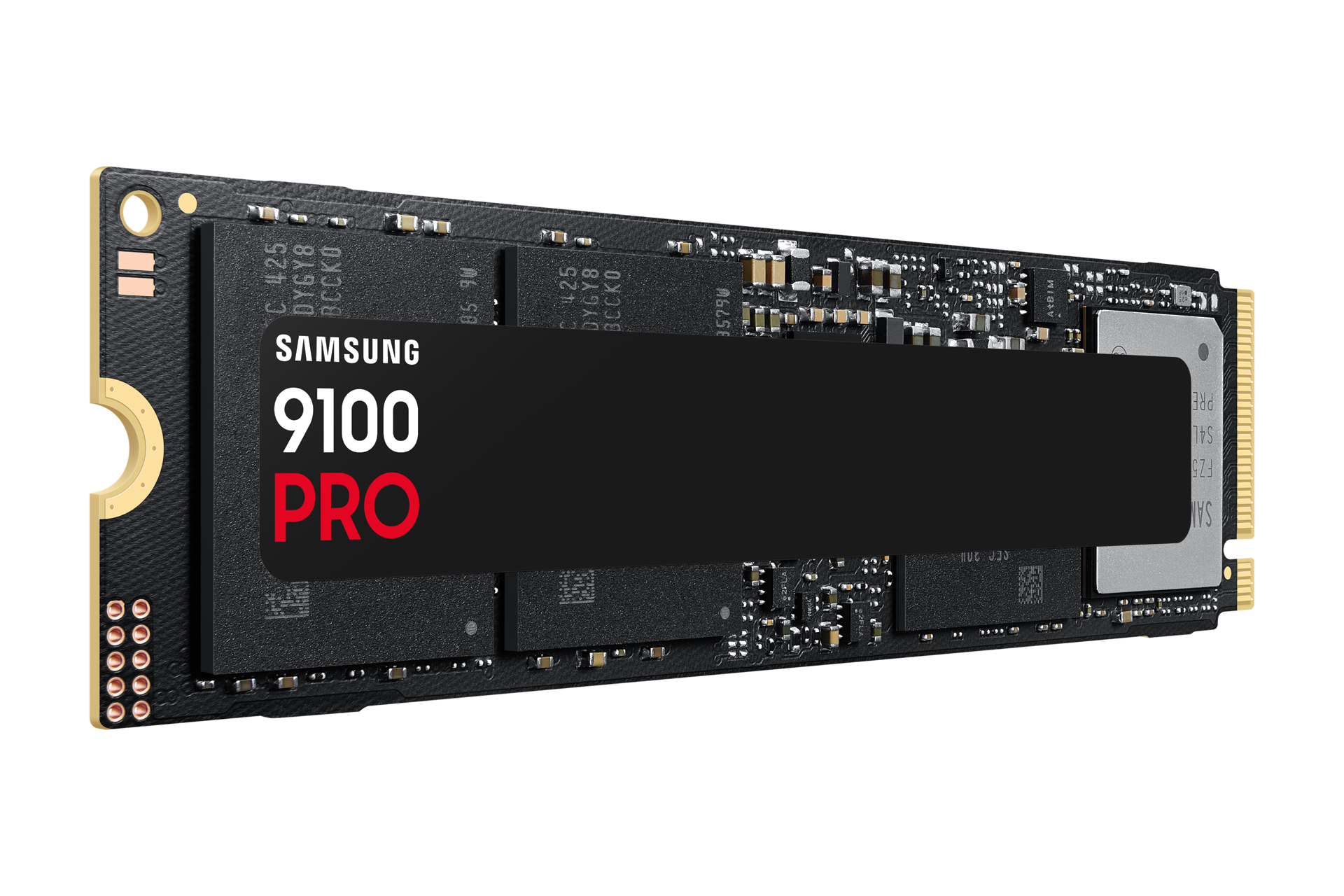
In most cases where computers open slowly, SSD and RAM are usually the two upgrades that make the most noticeable difference. SSD helps the device boot up, open software and access data faster. RAM helps the device avoid congestion when opening many applications at the same time.
CPU You should only upgrade or replace the entire platform when the machine is too old and often full CPU even though the software has been optimized. With desktop PC, upgrading CPU also depends on mainboard and power source. With laptops, CPU usually cannot be upgraded easily.
Separate VGA is only a priority if the game console is lagging, video editing, design or graphics processing. If you only use the office, study online and watch movies, a separate VGA is not the first thing you need to buy. You can refer to group PC gaming if your main need is playing games.
Suggested suitable replacement or upgrade configuration
| Demand | CPU suggestion | RAM | SSD | Suitable |
|---|---|---|---|---|
| Basic office | Core i3/new generation Ryzen 3 | 8GB | SSD 256GB | Word, Excel, Chrome, online learning |
| Multitasking is good fixed | Core i5/Ryzen 5 | 16GB | SSD 512GB | Excel with multiple files, Chrome with multiple tabs |
| Game/light graphics | Core i5/Ryzen 5 or higher | 16GB-32GB | SSD 512GB-1TB | Add separate VGA if playing games or designing |
The above table is not a fixed price quote, but an orientation for you to know the configuration Which image should be targeted after repair or upgrade. If the current machine is much lower than the suggested level, upgrading can clearly improve it. If the device is too old and does not support new components, buying another device will save more time.
What is a reasonable price to repair or upgrade?
Reasonable cost depends on machine condition. If you only need to upgrade SSD or RAM, the investment is usually much lower than buying a new machine. But if you have to replace many parts such as main, power supply, CPU, RAM and hard drive, the total cost may not be worth it.
For office machines, upgrading SSD and RAM is usually the direction to try first if the machine is still running fine. You can view the configurations PC office to compare with your current machine. For machines that are too weak or have high repair costs, group PC group may be a more practical alternative.
Common errors when self-correcting the wrong way
The first error is reinstalling Windows as soon as the computer is slow without backing up data. If your hard drive is failing, reinstalling can make the situation worse and increase the risk of file loss.
The second mistake is buying RAM or SSD without checking compatibility. RAM is incorrect, the bus is not compatible or SSD is in the wrong slot and may not be usable. Before buying, you need to check the mainboard, slot number RAM, DDR standard and type SSD supported.
The third mistake is cleaning the machine incorrectly. Spraying too much air into the fan, removing the heatsink without replacing the glue properly, or reinstalling a loose power/data cable can all cause new errors.
When should you buy a new device, when should you upgrade?
if the device is still in use HDD, priority SSD; If RAM is regularly above 85%, raise RAM first; If CPU is too old, consider replacing the device. If the device can still be used for main work and just lacks speed, upgrading is a reasonable choice. But if the machine is too old, has minor errors, no longer has suitable components or the performance is far below current needs, buying a new one will be safer.
Machines used for work to make money every day should not be left with prolonged errors. Waiting, hangups, lost data or sales interruptions can cost more than the cost of a timely upgrade.
If you are not sure whether to upgrade or replace your device, write down the current configuration, errors you are encountering, commonly used software and expected budget. This information helps advise more accurately.
Advice from TGS when dealing with a slow computer
Related problems such as a slow computer, upgrade RAM computer, upgrade SSD computer, upgrade PC office, upgrading PC gaming all need to start with a correct diagnosis. Don't just look at external symptoms and then buy components immediately. A slow computer can be caused by HDD, but it can also be caused by Windows error, C drive full or too much background software.
TGS often advises customers to check the data first, then process the software and hardware. If the machine is still worth using, upgrading RAM/SSD properly can prolong its life. If the platform is too old, switching to a new configuration will be more stable.
You can see more PC office, PC gaming, PC group or send your device status via page to contact consultant.
FAQ about slow computer opening
Is a slow computer opening due to a virus?
Maybe, but not always. You should check Task Manager, C drive capacity, status RAM/SSD and scan for strange software before concluding.
Does upgrading SSD make the device faster?
If your computer is still using HDD or the hard drive is weak, upgrading to SSD often helps start and open software significantly faster.
When should you take your device for inspection?
When the device turns off by itself, does not display the screen, hangs on the logo, has important data or has tried basic optimization but the error still repeats, you should have it checked by a technician.
Conclusion: handling slow computer opening requires the right cause
A slow computer should not be handled emotionally. Please check the software, hard drive, RAM, temperature and usage needs before deciding to repair, upgrade or buy a new one. Doing it in the right order will save costs and reduce the risk of data loss.
If you don't know where your device is stuck or what part you should upgrade, call contact TGS for advice. TGS will be based on machine condition, budget and intended use to suggest actual handling.